 Appmost
TestFlight upload workflow for app prototypes
TestFlight is where a prototype starts meeting real devices, testers, and Apple’s build rules. Appmost helps keep that path tied to the native app project: screen work, signing choices, bundle identifiers, build numbers, upload status, and the tester handoff all stay part of one release-minded workflow.
Short answer
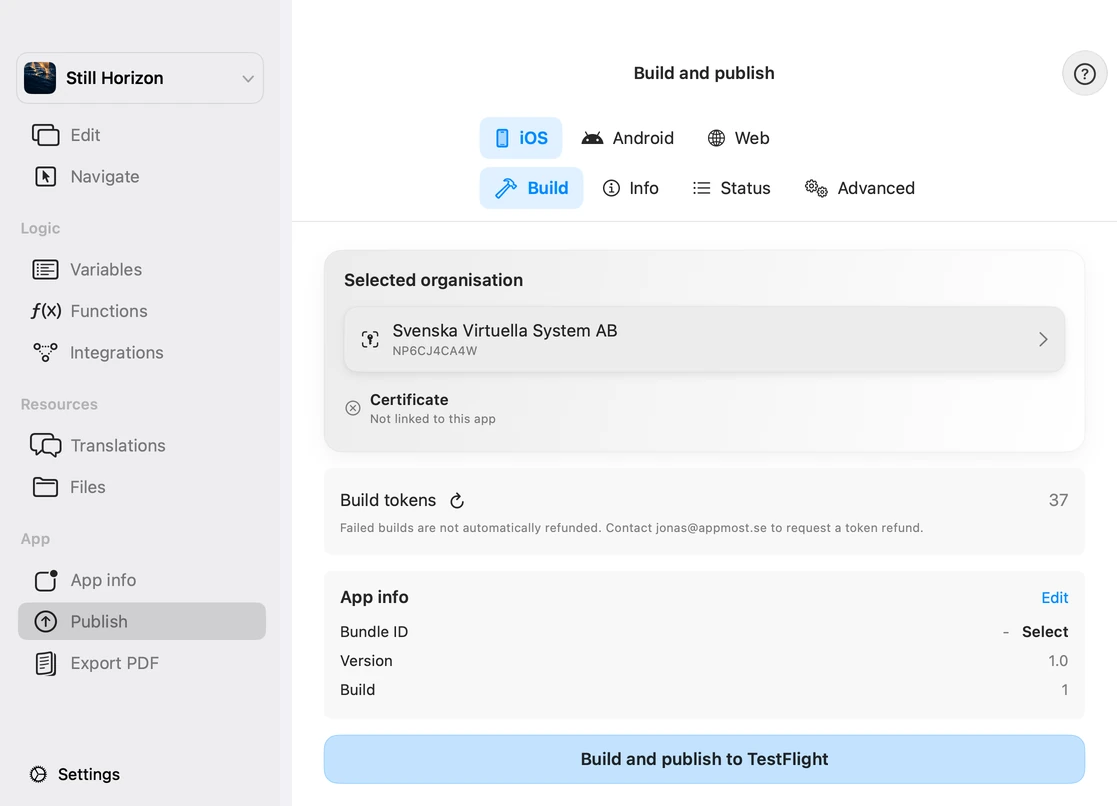
Use Appmost for TestFlight upload when a native app prototype is ready for device feedback but still needs a controlled build path. Confirm the App Store Connect app, bundle ID, version and build number, signing setup, and tester group before upload. Appmost can prepare and start the build flow, while Apple still handles processing, TestFlight availability, beta review for external testers, and tester invitations in App Store Connect.
What TestFlight adds to a prototype
A clickable prototype can answer whether the flow makes sense. A TestFlight build answers a different question: what happens when the app is installed, launched, tested, and shared through Apple’s beta channel. That brings in signing, bundle identifiers, versioning, processing time, tester roles, and feedback loops that static prototype tools do not need to handle.
Appmost is useful at this stage because the prototype is already close to the native project. The same work that shaped screens and flows can move into build preparation. The upload is not treated as a detached engineering chore at the end; it becomes a release readiness check for the app idea.
Before starting the upload
TestFlight upload is smoother when the project is checked before a build token, signing step, or Apple processing window is involved. The important checks are plain: the app identity must match App Store Connect, the build number must be new, and the prototype should be stable enough that testers are not reviewing accidental placeholder work.
| Check | Why it matters | Appmost review point |
|---|---|---|
| App Store Connect app | The upload needs the intended Apple app record, team, and permissions. | Select the correct saved organisation and match the app before starting. |
| Bundle ID | The package must match the identifier Apple expects for that app. | Review bundle ID in the build flow and fix mismatches before upload. |
| Version and build | Apple requires a build number that is newer than previous uploads for the app. | Check version/build deliberately; do not reuse a processed build number. |
| Prototype quality | Testers should review the product path, not missing icons, broken copy, or dead ends. | Walk the main flow in Appmost before spending a build attempt. |
A practical Appmost workflow
The workflow starts before the upload button. Treat TestFlight as the moment where project decisions become operational: app identity, signing, tester scope, and feedback plan.
- Clean the prototype path. Review the main screens, empty states, app icon direction, and first-run experience in Appmost.
- Open the build flow. Use the Appmost build and publish path for the current project instead of exporting a detached artifact.
- Match App Store Connect. Choose the saved organisation, select the intended app, and check bundle ID, version, and build number.
- Start the build upload. Appmost packages the project, uploads it for the build server, and tracks the upload state.
- Wait for Apple processing. After upload, App Store Connect still needs to process the build before it can be assigned to testers.
- Invite the right testers. Use TestFlight groups for internal review first, then external testing when the build and review requirements are ready.
Internal and external testing are not the same
Apple’s TestFlight flow separates internal and external testing. Apple documents internal tester groups for App Store Connect users with appropriate access, and external testing can reach a much larger audience but may require beta review before testers can use the build. That difference matters when deciding whether a prototype is ready for a small team check or a broader validation round.
For an early Appmost prototype, internal testing is usually the first useful milestone. It checks installability, startup, first flows, visual assets, and obvious crashes without turning the prototype into a public testing program too early. External testing belongs later, when the app has clearer test notes, support responsibility, and a narrower list of questions.
What to tell testers
Testers give better feedback when the build has a defined question. Avoid asking people to “try the app” with no direction. Tell them which journey matters and what kind of feedback is useful.
First-run check: Install the build, open it fresh, and stop when you understand what the app is for. Note the first screen where the next action feels unclear.
Core journey: Complete the main flow from entry screen to confirmation. Report any screen where labels, back paths, or required input slow you down.
Device fit: Try the app on the smallest phone you have available. Look for clipped text, controls too close together, and screens that need too much explanation.
Release risk: Ignore visual polish for five minutes and look only for blockers: crash, login failure, upload failure, missing permissions, or impossible navigation.
Common mistakes
- Uploading before the app identity is clear. Bundle ID, app name, version, and build number should be reviewed before the build starts.
- Treating TestFlight as App Store release. TestFlight is beta distribution. Store submission, App Review, pricing, and release are separate decisions.
- Skipping internal testing. A small internal group often catches install, launch, and first-flow issues before external testers see them.
- Sending vague test notes. Testers need the journey and questions, especially when the prototype is not a complete product.
- Ignoring Apple processing time. Upload success is not the same as tester availability; Apple still needs to process the build.
When TestFlight is too early
Stay in mockup or prototype review when the main screen set is still changing every session, the product promise is unclear, or the app cannot survive first-run feedback. Use the mobile app mockup workflow, AI app prototype workflow, or app flow visualizer until the core journey is stable enough to install.
Move toward TestFlight when device feedback will answer a real question: onboarding, performance feel, field use, camera or upload flows, stakeholder review on real hardware, or whether the prototype deserves a production MVP. For broader product delivery, compare the build path with native app design work and the Appmost project format.