 Appmost
AI app icon generator for native app projects
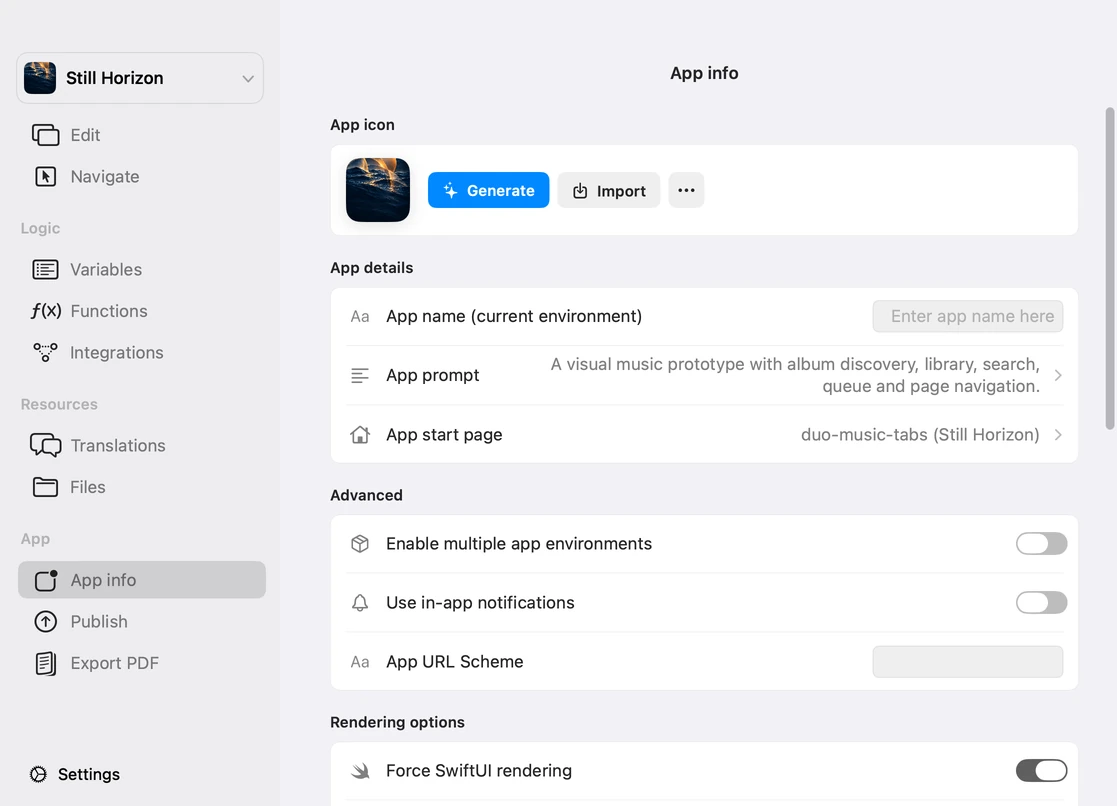
An app icon is easier to judge when it sits beside the product it represents. Appmost helps you use AI for icon directions while keeping the decision tied to the native app screens, brand tone, and launch assets that will ship with the project.
Short answer
Use Appmost as an AI app icon generator workflow when the icon should match a real native app project. Generate several icon directions from the app's purpose, audience, color system, and first screens; review each direction at small sizes; reject ideas that look generic or misleading; then keep the chosen direction connected to the Appmost project before preparing App Store and Google Play assets.
Why icon generation belongs near the app
A standalone image generator can produce a good-looking mark, but it cannot tell whether the mark fits the actual app. The icon has to work with the product name, category, first screen, color palette, and store listing. It also has to survive small sizes on a home screen, dark backgrounds, notification contexts, and competing apps in the same category.
Appmost keeps the icon decision close to the project. You can use an AI agent to create app screens, shape the visual direction, and document the icon brief in the same workspace. The generated artwork still needs human review, but the review has better evidence: the app itself.
Prompt examples for app icons
A strong icon prompt describes the product's job, what should be avoided, and how the icon should feel at small size. Ask for directions, not one final answer.
Weather app: Create five app icon directions for a precise iPhone weather app focused on hourly conditions and widgets. Avoid generic sun-and-cloud symbols. Explore glassy measurement marks, pressure lines, and compact temperature forms that stay legible at 60px.
Marketplace app: Generate icon concepts for a local service marketplace where homeowners request quotes. The icon should suggest trust and matching without using a handshake, house roof, or checkmark badge. Keep the shape simple enough for Android adaptive icons.
Internal operations app: Create app icon directions for warehouse supervisors managing exceptions. Use a sober, high-contrast mark based on routing, scan lines, or resolved work. Avoid decorative dashboards, charts, and abstract productivity symbols.
Creator tool: Explore icon directions for a mobile app that helps creators plan short video shoots. The mark should feel practical and studio-like, not like a social network. Use one strong silhouette and no tiny camera details.
A practical Appmost workflow
The first icon pass should be wide enough to compare, then narrow enough to test. The goal is not to keep the most detailed image. It is to find the clearest product signal and turn it into launch-ready assets.
- Write the icon brief from the app. Use the app category, audience, core action, visual tone, and color constraints from the Appmost project.
- Generate several directions. Ask the AI agent for distinct concepts: symbolic, object-based, typographic, abstract, and color-led.
- Review at small sizes. Check 1024px, 180px, 120px, 60px, and notification-like sizes before choosing a direction.
- Compare against screens. Place the candidate beside the app's first screens, home screen name, and store positioning.
- Prepare asset decisions. Decide what still needs vector cleanup, dark/light treatment, Android adaptive foreground/background, and store screenshots.
What to check before choosing an icon
| Check | What to look for | Why it matters |
|---|---|---|
| Small-size clarity | The mark still reads when compressed to home-screen and notification sizes. | Many AI-generated icons look good large but collapse into texture when scaled down. |
| Category distinction | The icon does not use the same obvious symbol as every competitor in the category. | Search and store pages show icons in a competitive row, not alone on a moodboard. |
| Product honesty | The mark does not imply a feature, platform, or brand promise the app does not have. | An icon is metadata for trust. Misleading polish can create poor store and user signals. |
| Launch readiness | The direction can become iOS, Android adaptive, favicon, social, and press assets. | Choosing an image that cannot be cleaned up creates work at the end of the release. |
Common mistakes
- Keeping the most detailed option. App icons need strong shapes before they need rendering detail.
- Generating without the product screens. The icon should feel connected to the actual app, not only to a prompt mood.
- Using a category cliché. A weather app does not automatically need a cloud, and a finance app does not automatically need a graph.
- Ignoring platform asset rules. iOS and Android need different export decisions, especially for adaptive icons and masks.
- Treating AI output as final brand design. AI can explore directions quickly, but final marks still need cleanup, ownership review, and consistency checks.
When to use another method
Use a brand designer when the icon is part of a broader identity system, trademark strategy, or launch campaign. Use a pure image generator when you only need visual inspiration and the app screens are not ready yet. Use Appmost when the app already has enough structure to make the icon decision concrete: screens, tone, navigation, and a path toward iOS and Android builds.
For early product work, it often helps to pair the icon pass with a mobile app mockup or native app design pass. The icon then becomes one visible decision inside a larger product direction, not a detached graphic.