 Appmost
App flow visualizer for AI app prototypes
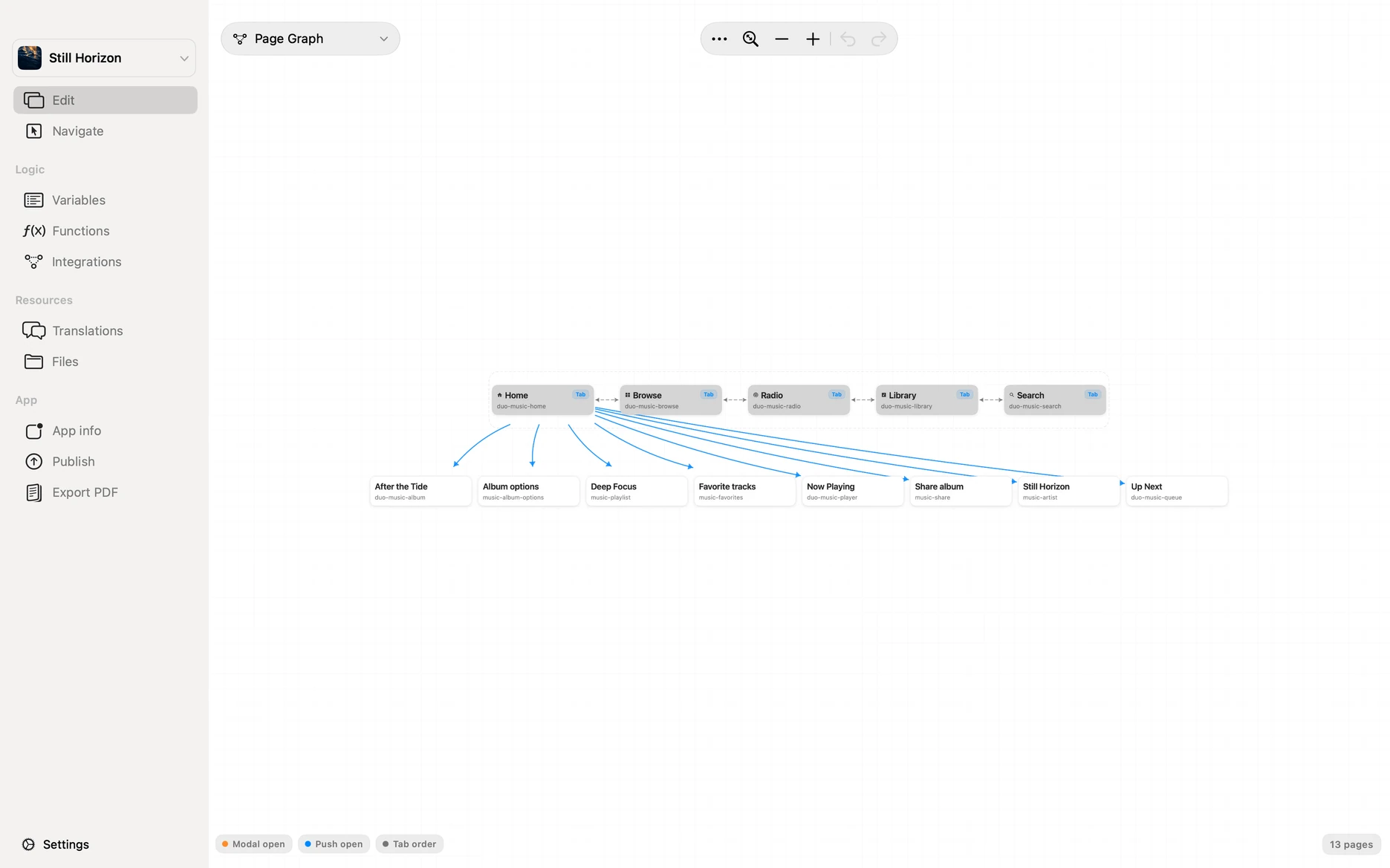
A generated app can look convincing screen by screen while still hiding a weak journey. Appmost helps keep flow review close to the project: entry points, core paths, side branches, back paths, and build decisions are reviewed before the prototype moves toward device testing.
Short answer
Use Appmost as an app flow visualizer when the prototype has enough screens that a linear preview is no longer enough. Map the intended journey, check whether every important screen is reachable, remove duplicate branches, add missing empty and error states, then decide whether the work is still a prototype, ready for stakeholder review, or ready for build planning.
What an app flow visualizer should answer
A mobile app flow is not only a list of screens. It is the set of decisions, exits, loops, and next steps a person meets while using the app. A useful visualizer makes those connections visible enough that structure problems can be fixed before they become code, review feedback, or TestFlight confusion.
Appmost is useful here because the flow review stays attached to the native app project. The same screens that an AI agent edits, the same preview that shows the product direction, and the same build path that can later prepare installable apps all stay in one place.
Start with the intended journey
Before adding more screens, write the journey that should be easy to understand. A visual map helps most when it has a target: one entry point, one main task, one decision point, and one successful end state. If the target is vague, the map only proves that the prototype is large.
| Flow area | Question to answer | Appmost review point |
|---|---|---|
| Entry point | Can a first-time user understand where to begin? | Check onboarding, dashboard, empty state, and first primary action together. |
| Core path | Can the main task be completed without explanation? | Walk the path from first screen to confirmation and mark each required decision. |
| Side branches | Do secondary screens support the task or distract from it? | Remove branches that exist only because the first generation invented them. |
| Back paths | Can someone recover from a wrong tap or changed decision? | Review back, cancel, edit, and saved-state routes before build planning. |
Prompt examples for flow review
A flow prompt should name the journey and ask for structure, not just a fresh visual pass. These examples keep the agent focused on navigation and state.
Subscription app: Review the flow from opening the app to adding a subscription and receiving a renewal warning. Identify screens that are unreachable, duplicate, or missing an empty state.
Marketplace app: Map the buyer journey from search to provider detail, quote request, date selection, confirmation, and saved provider. Add the back paths a user would expect before confirming.
Field reporting app: Check whether a worker can open a job, add photos, record materials, submit the report, and recover from a failed upload without leaving the flow.
Clinic intake app: Review appointment confirmation, symptoms, insurance photo, queue status, and help. Keep privacy-sensitive screens clear and avoid unnecessary branches.
A practical Appmost workflow
Treat flow review as a separate pass after the first mockup or prototype generation. The job is to make the structure easier to explain, easier to test, and easier to move toward a build.
- Name the main path. Write the one journey that must work before the prototype deserves wider review.
- Inspect the screen set. Look at the prototype as a group and mark entry points, repeated destinations, and screens without a next action.
- Remove false complexity. Delete generated branches that do not support the first version, especially duplicate dashboards, settings, and generic analytics screens.
- Add missing states. Include empty, loading, permission, error, and confirmation states when they change the user journey.
- Choose the next artifact. If navigation is unclear, iterate on the prototype. If the path is stable, move toward review assets or build preparation.
What to check before TestFlight
Flow review matters more when the prototype may become installable. A TestFlight build can expose device, signing, and runtime problems, but it should not be the first place you discover that the app has no clear recovery path or that the primary journey depends on a missing screen.
Reachability
Every screen required for the main task should be reachable from the intended entry point.
Recovery
Wrong turns, failed uploads, cancelled actions, and edits should have an obvious next step.
State coverage
Empty lists, permission requests, loading states, confirmations, and errors should not be afterthoughts.
Release scope
Mark what must be real before device testing: data, authentication, notifications, media, or payment flows.
Common mistakes
- Reviewing only the nicest screen. A polished first screen can hide missing paths and confusing branches.
- Keeping every generated screen. Extra screens make a prototype look complete while making the core journey harder to test.
- Skipping back paths. Many mobile flows fail when a user changes their mind, edits input, or returns after interruption.
- Adding build work too early. Signing, TestFlight, and release preparation should come after the main path is understandable.
- Confusing a map with usability testing. A visual flow review catches structure issues, but a person still needs to walk through the prototype.
When another method is better
Stay with the mobile app mockup workflow when the question is still visual direction. Use the AI app prototype workflow when you need the first connected journey. Move to TestFlight preparation when the flow is stable enough that real-device feedback will answer a useful question.
Use a full product-spec workflow when the team needs requirements, data models, and implementation planning before the screens are useful. Use Appmost when the immediate problem is the app itself: what screens exist, how they connect, and whether the first version is coherent enough to test.