 Appmost
Give your app
room to unfold.
An app should feel considered at every size. Review the same project in compact and expanded iPhone Duo layouts, then explore the transition with Appmost’s folding preview.
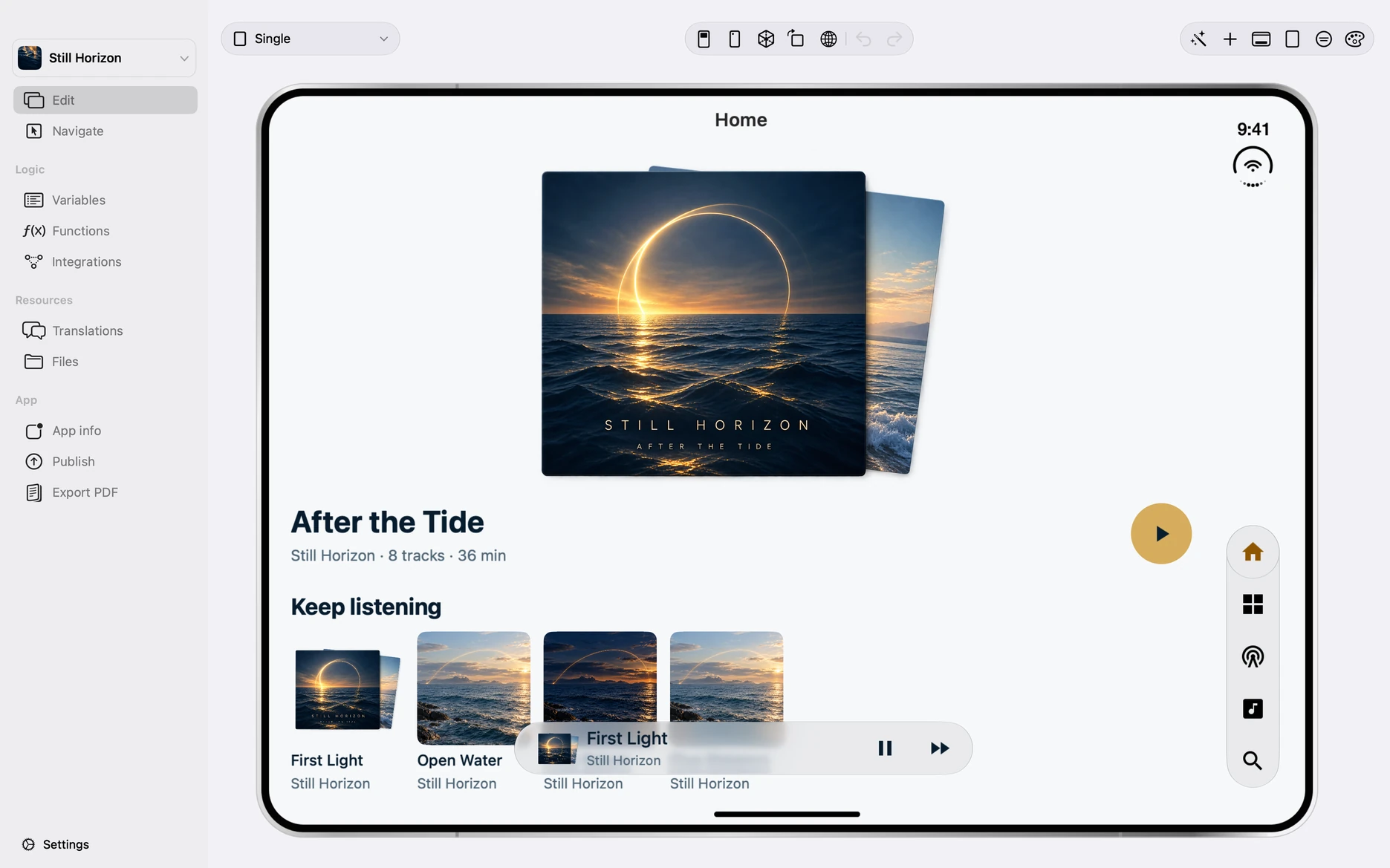
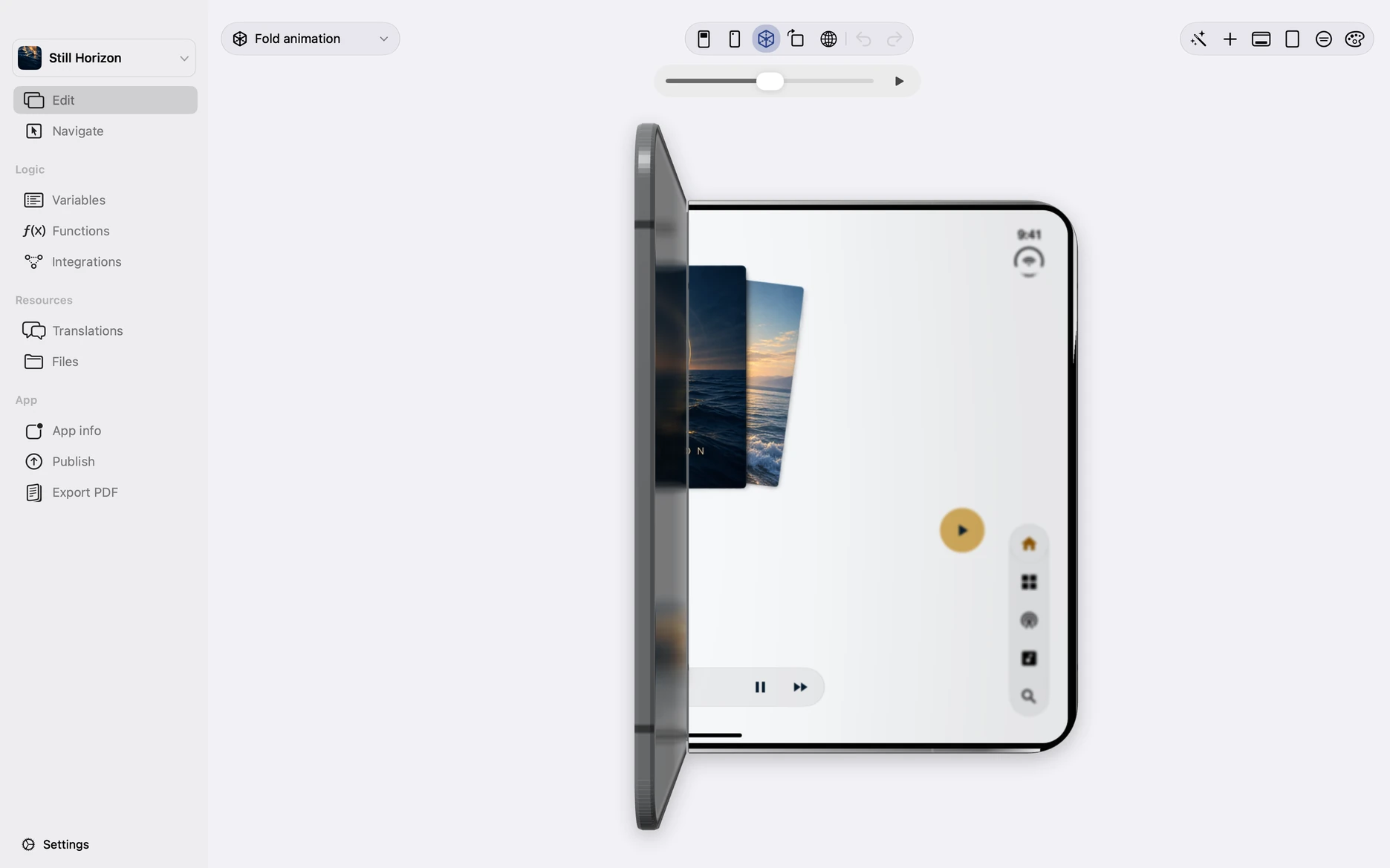
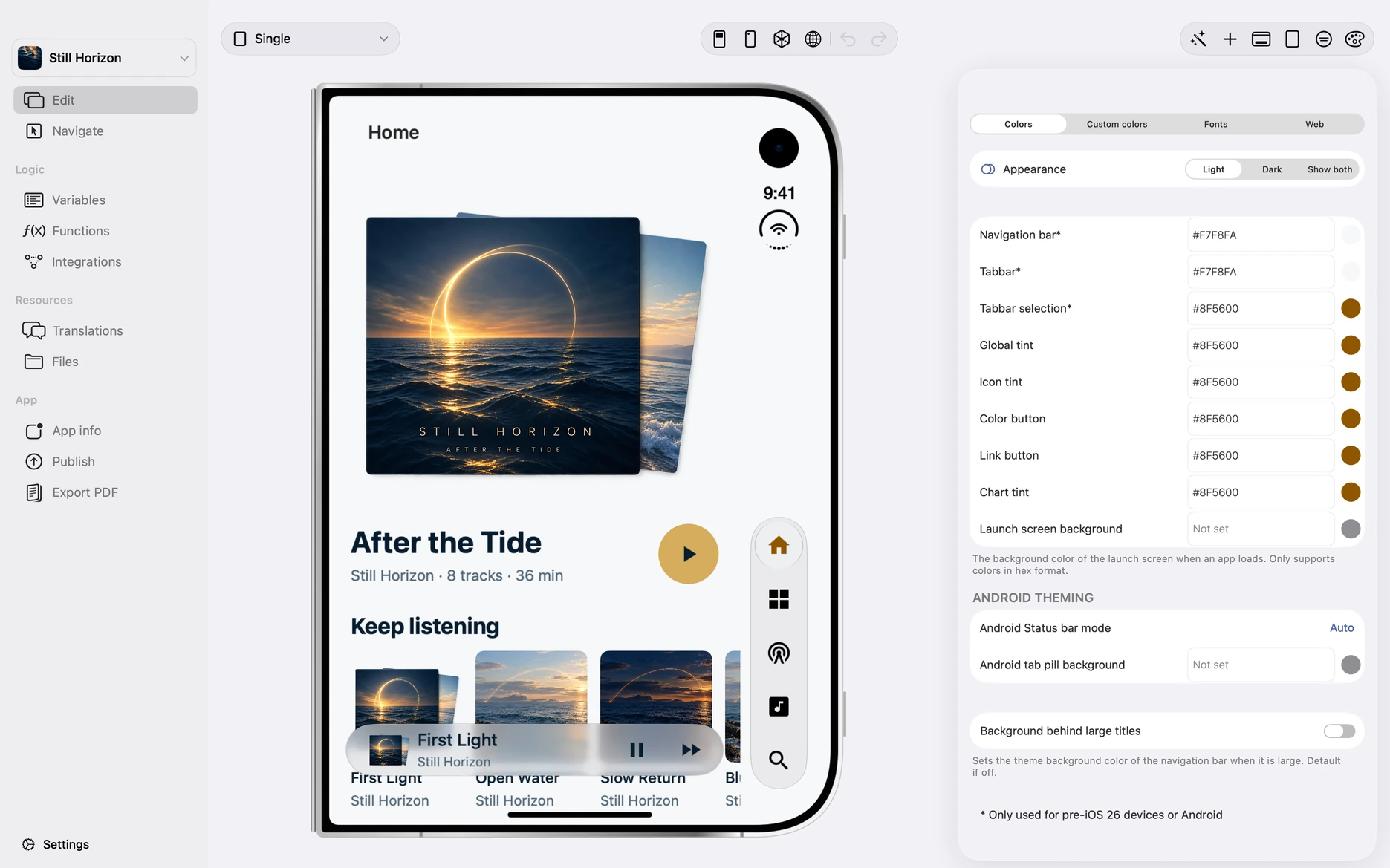
Keep the design connected as the size changes.
Check what happens to the elements people use most: navigation, primary actions, artwork and persistent controls. More space should help the screen feel clearer, while the compact layout keeps the important actions easy to reach.
- Artwork and content: compare image proportions, text wrapping and the amount of content visible at each size.
- Navigation and player: review their placement alongside the app content.
- One project: refine the same screens without maintaining a separate mockup for every preview size.
Try it with your own app.
Open a project in Appmost.
Choose a screen with real content so changes in spacing, artwork and navigation are easy to judge.
Select the iPhone Duo preview.
Use the device picker to choose iPhone Duo. Compare compact and expanded poses, and use the folding viewer to inspect the transition.
Review and refine with your agent.
Connect OpenAI Codex or Claude Code through local MCP. Start with a review of the screen, then make one focused improvement.
Use the Appmost MCP tools to inspect the home screen in the open project. Review its compact and expanded iPhone Duo layouts. Check text wrapping, artwork proportions, navigation and primary actions. Describe any issues and propose changes before editing.
About the preview.
These screenshots show Appmost’s design preview on Mac, including its production workspace and folding renderer. They demonstrate layout and visual transitions. They are not captures from a physical iPhone Duo or a measurement of runtime performance.
Use the preview to refine your design, then verify device behavior and platform details as part of your app’s testing process.